Fast Save As
Drag a folder from EDS onto an open Word, Excel or AutoCAD document. EDS opens Save As and navigates to the selected folder.
SMARTER FILE MANAGEMENT FOR WINDOWS
EDS easy drop save is a smart Windows sidebar. Drag a project folder onto an open document to launch Save As with the right folder selected. Keep files, shortcuts, sticky notes and apps close at hand, too.
FEATURES
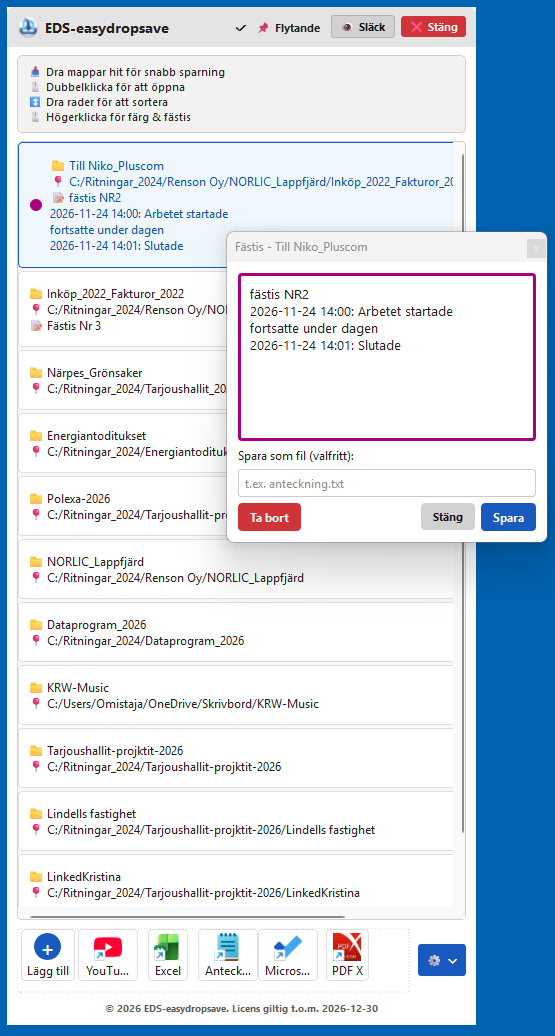
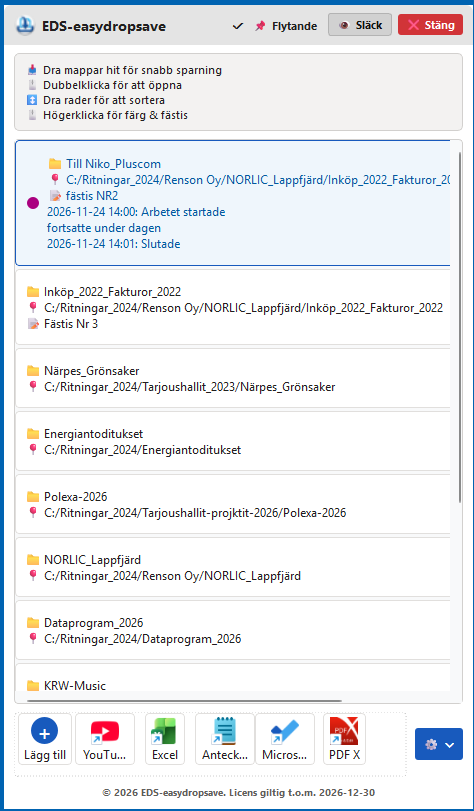
EDS brings project folders, files, links, notes and applications together in an accessible Windows sidebar.
Drag a folder from EDS onto an open Word, Excel or AutoCAD document. EDS opens Save As and navigates to the selected folder.
Drop a file directly onto a project folder in the EDS list, then choose whether to copy or move it there.
Double-click to open a folder or website and copy its path or address to the clipboard. Reorder, colour-code or sort your list.
Create timestamped sticky notes and link them to web addresses. When you revisit a page, its associated note can appear automatically.
Add executable files or shortcuts (.exe) to the bottom of the panel and launch frequently used applications with one click.
Use EDS across multiple displays, pin it open in floating mode, or hide it with the Blackout control. Resize and reposition it.
Choose your language, password-lock the panel and access license renewal in Settings. The password protects the app, not the contents of your files.
HOW IT WORKS
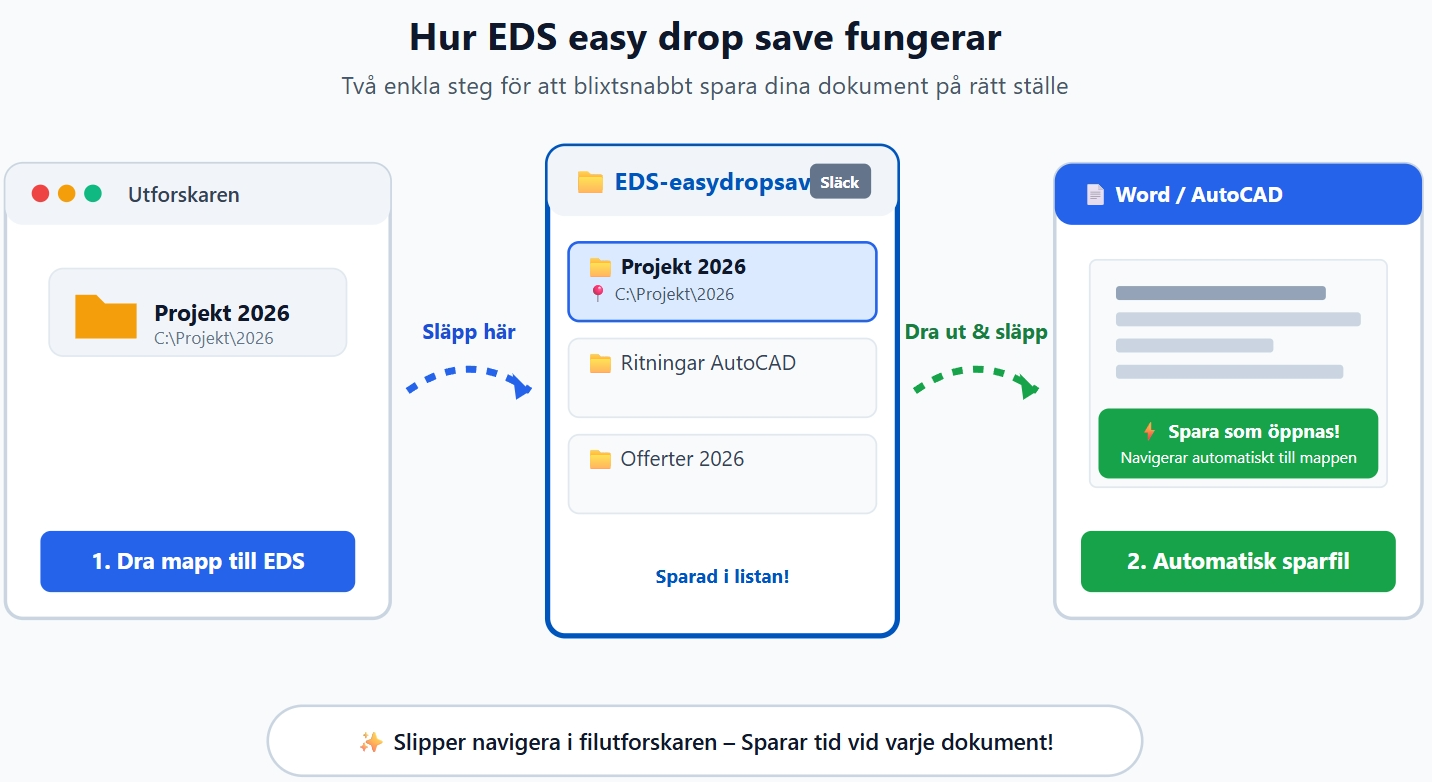
Drag folders from File Explorer into your EDS list. Give each one a clear working name.
Open or create a document in Word, Excel, AutoCAD or another supported program.
Drag the project folder from EDS onto the document. EDS opens Save As with the folder path selected.
More shortcuts: Double-click an item to open its folder or website and copy the address to your clipboard. Drop a file onto an EDS folder to choose Copy or Move.
SEE THE SOFTWARE
Here you can see the EDS panel in list view together with an illustrated workflow showing how the software is used.

WHO IS IT FOR?
EDS is particularly useful when you work across multiple projects, clients and documents.
Reach the right project and drawing folders quickly when working in applications such as AutoCAD.
Switch smoothly between customer folders, quotations and project documents.
Save spreadsheets, reports and agreements in the right client or reporting-period folders.
Reduce unnecessary mouse clicks and focus more on your work than on file management.
VIDEO
Watch how EDS helps you access project folders and save files more quickly. The demo video is hosted on Google Drive.
Open video in Google Drive ↗The video is displayed from Google Drive. If playback fails, open the video on Google Drive.
FREE DEMO
Try EDS on Windows before purchasing a license. Open the installer in Google Drive using the button, then select Download.
The demo installer is provided through Google Drive. Check the file and any Windows security warnings before installing.
LICENSES
Try EDS for free, then purchase a license through PayPal. Existing users can contact us about renewals or upgrades.
For anyone ready to use the full version of EDS easy drop save.
Price and payment terms are shown on PayPalPay with PayPal✓ Secure checkout on PayPalAlready use EDS? Contact support to check renewal options, expiration dates and available upgrades.
Price confirmed on requestAsk about renewalPayment takes place on the PayPal website. Automatic license issuance and renewal are not connected yet. Contact support if you need help after paying. Never email card details or passwords.
CONTACT & SUPPORT
Get in touch about installation, product features, a new license or a renewal.
Complete the form and we can help with questions about the application, installation or your licence.